
Your browser can detect whether the device is Android or iPhone and show the matching instructions on mobile.
Bluetooth VR Headset Setup
Follow these steps to pair the Bluetooth headset before starting the VR video.
-
1Unbox the headsetUnbox the headset from the box.
-
2Power on the headsetClick and hold the center button until the blue light turns on.

-
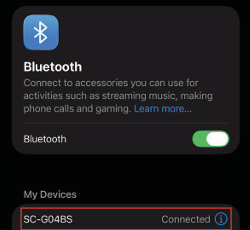
3Connect via BluetoothGo into Bluetooth settings, select SC-G04BS, and connect.
-
4Adjust volumeUse the headset buttons to control the volume.

-
5Start watchingOnce connected, you can start watching the video.
A
Android Users
Open the supplied video in YouTube and switch the viewer into VR mode.
-
1Open the video in YouTube Open the video directly in YouTube: Watch video
-
2Select the VR icon Once the video opens, tap the VR icon to switch into headset mode.

-
3Insert the device into the goggles Slip the device into the goggles and enjoy.
iOS Users
Install the VR Player app, apply the recommended settings, then open the video in VR mode.
-
1Install VR Player Navigate to the App Store and install VR Player.
-
2Open the app settings Once installed, open the app and navigate to the settings section.
-
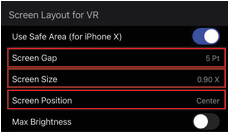
3Set the screen layout for VRUnder Screen layout for VR:
- Turn on Use safe area
- Set Screen gap to 5 Pt
- Set Screen position to Center
-
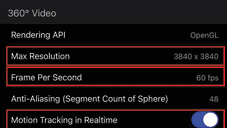
4Set the 360 video optionsUnder 360 Video:
- Max Resolution:<3840 × 3840
- Frame per second: 60fps
- Turn on Motion Tracking in Realtime
-
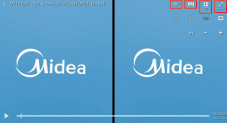
5Open the video and enable VR view
- Open the downloaded video
- Enable 360 View>
- Tap the VR icon
- Select 2D
- Set Zoom to Zoom 2
-
6Insert the device into the goggles Slip the device into the goggles and enjoy.